 Hamster PhotoBackup
Hamster PhotoBackup: Keep Your Windows PC Awake
Hamster PhotoBackup uses this PC as the home for your photos: backing up from your phone and browsing the PC's library on your phone both need to reach this PC. Once the PC goes to sleep, your phone can no longer find it.
While a transfer is running, Hamster PhotoBackup keeps the PC awake by itself. The rest of the time Windows still sleeps according to its power settings, and your phone can't connect the next time you open the app. So it's worth changing the setting below once. The screen can still turn off as usual; only the computer itself needs to stay awake.
Also keep three things in place: the PC is plugged in, Hamster PhotoBackup is open (minimizing is fine, but closing the window quits the app), and your phone and PC are on the same Wi‑Fi or router.
Never sleep when plugged in (Windows 11)
Step 1 Open Start › Settings › System › Power & battery (called Power on desktop PCs). You can also press Win + R, type ms-settings:powersleep and press Enter.
Step 2 Expand "Screen, sleep, & hibernate timeouts" (called "Screen and sleep" on some versions) and set "When plugged in, make my device sleep after" to Never. You don't need to change when the screen turns off.
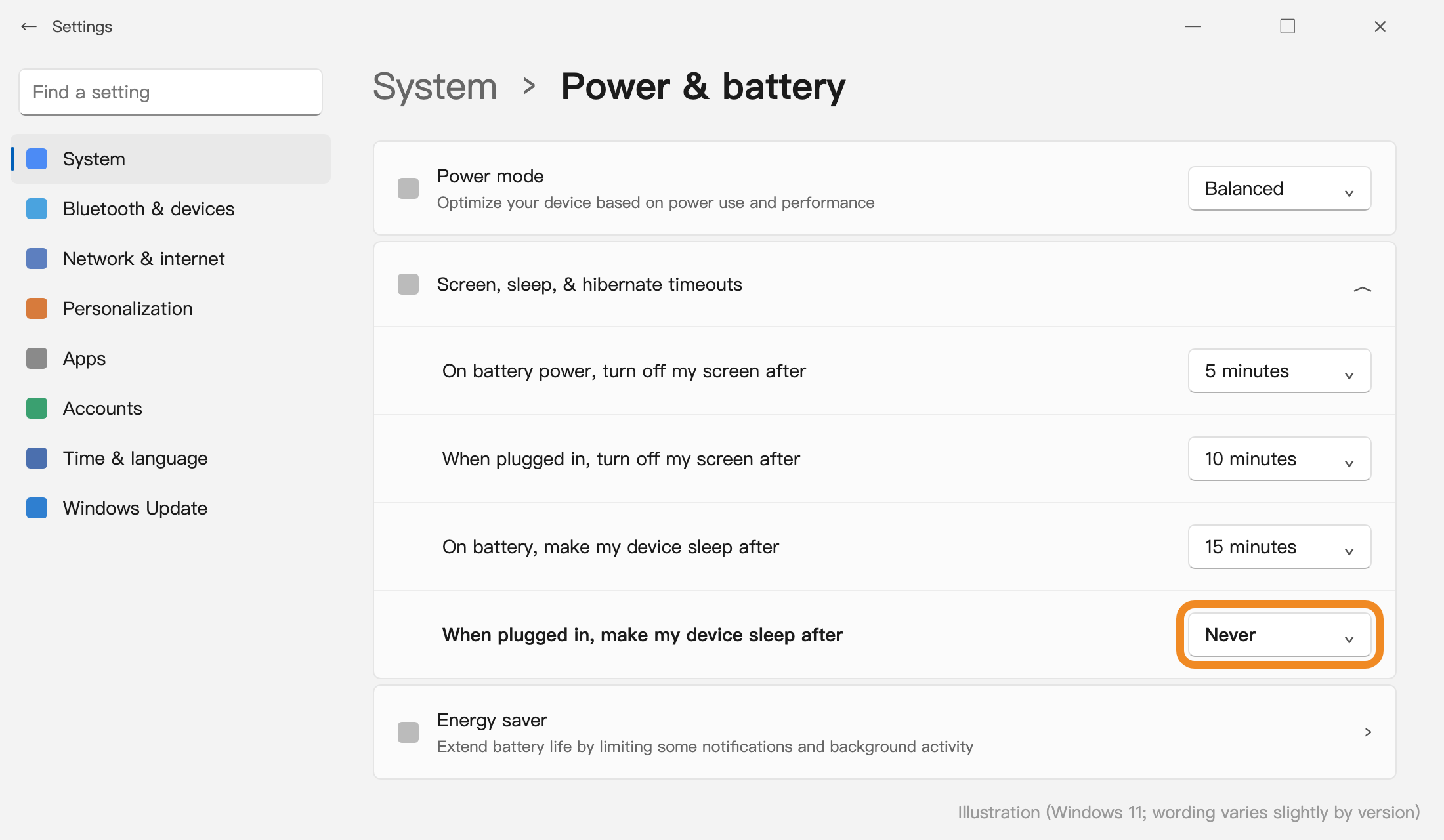
Windows 10 Open Start › Settings › System › Power & sleep, and under Sleep set "When plugged in, PC goes to sleep after" to Never.
Laptops: stay awake with the lid closed
By default a laptop sleeps when you close the lid. If you'd like to keep it closed and out of the way, open Control Panel › Hardware and Sound › Power Options, click "Choose what closing the lid does" on the left, set "When I close the lid" to "Do nothing" in the Plugged in column, then click Save changes.
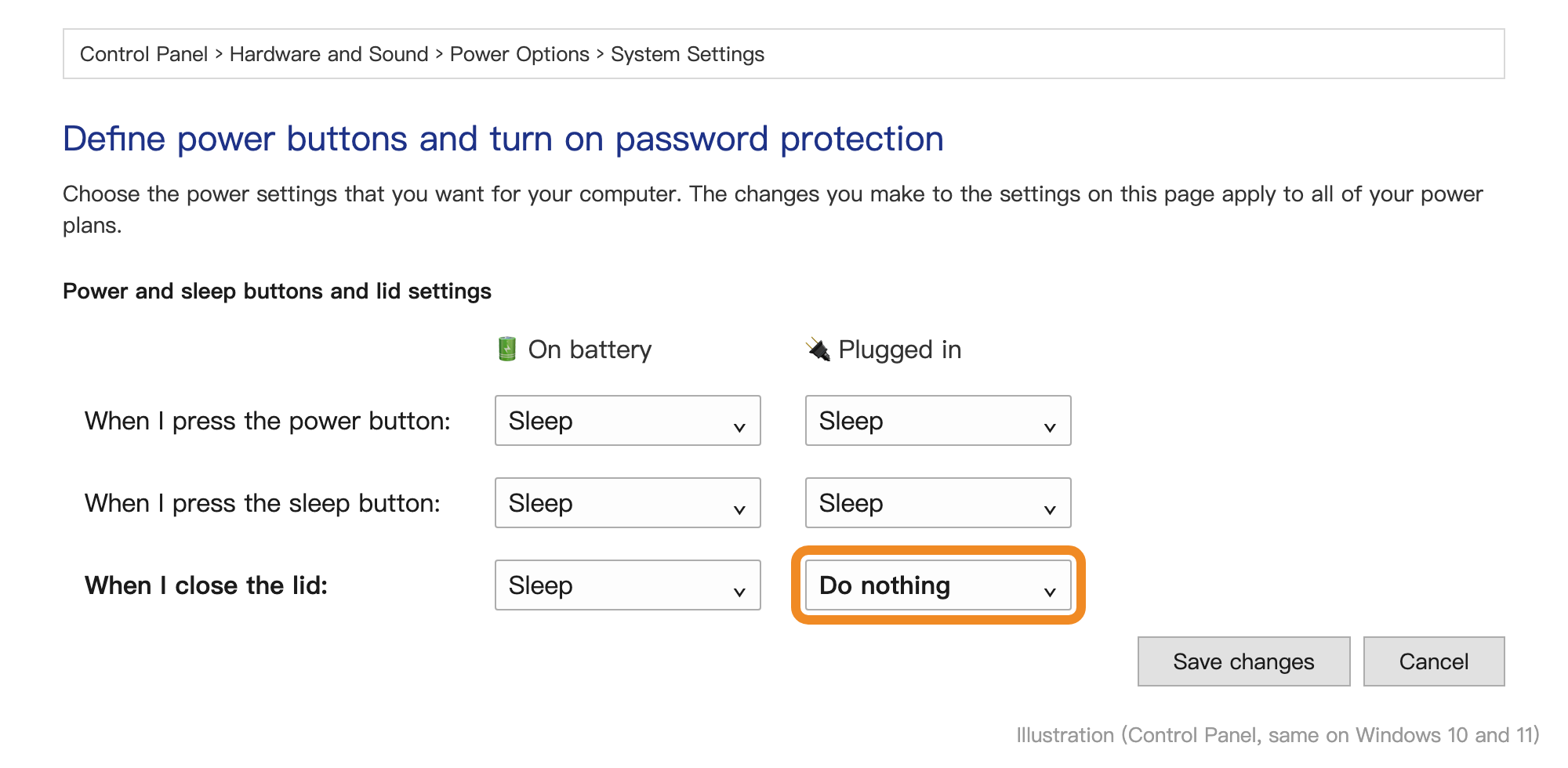
With this setting a closed laptop keeps running, so don't put it in a bag or on a blanket, sofa or anywhere else without airflow.
Still can't connect?
Check that the PC isn't asleep, Hamster PhotoBackup is open, and your phone and PC are on the same network (some routers isolate devices on the guest network, so use the main one). If you use third-party security or firewall software, allow Hamster PhotoBackup to access your local network. On work or school PCs, these power settings may be locked by your administrator.
Images are illustrations; wording may differ slightly between Windows versions.